12 Microsoft Edge Settings You Should Change for a Better Experience
Microsoft Edge is a feature-rich browser, but the default settings don’t offer the best experience to users. There are many areas where Edge can work better for you by just tweaking the settings. You can enhance your privacy, boost browser performance, customize the UI to your liking, and improve productivity, among other things. We have compiled a list of the Microsoft Edge settings you should change to get the most out of the default browser on Windows 11/10.
1. Enable Strict Tracking Prevention in Edge
2. Turn On Scareware Blocker in Edge
1. Enable Strict Tracking Prevention in Edge
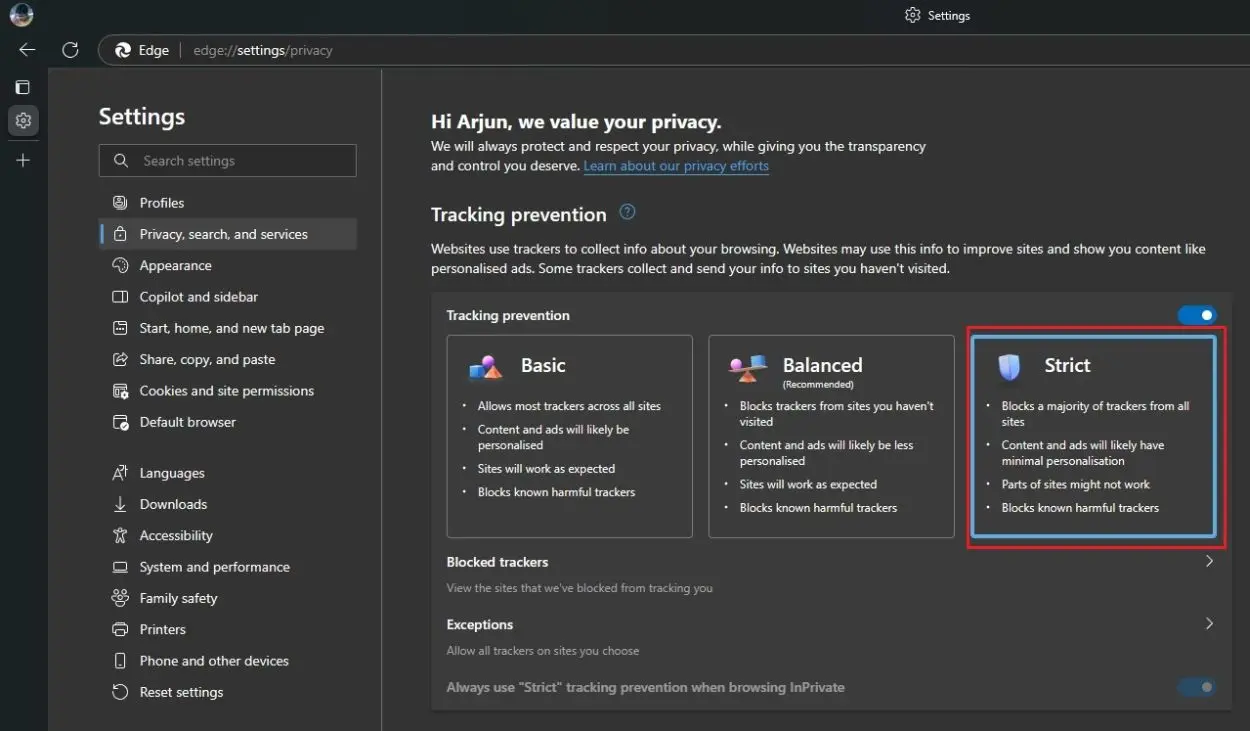
First and foremost, you should enable “Strict” tracking prevention in Microsoft Edge to block all kinds of trackers and scripts on the web. Unlike Balanced and Basic, the Strict mode blocks a majority of trackers including harmful ones that appear as ads and media content but includes a tracker or script to track your web activity. To enable Strict tracking prevention, open Settings from the three-dot menu in the top-right corner. Under, “Privacy, search, and services”, choose the “Strict” mode. That’s it.
2. Turn On Scareware Blocker in Edge
Microsoft recently introduced an AI-powered “Scareware Blocker” on Edge, which protects your PC from full-screen scareware pop-ups. These kinds of pop-up ads often show alarming messages with aggressive audio, warning you that your computer has been hacked. It also hijacks the keyboard and asks you to call a support number or download malicious remote software to fix the issue.
Microsoft is using on-device ML models to detect such sketchy websites on Edge and protect you from online scams. Whenever such sites are detected, Edge will exit the full-screen mode and give the control back to the user, informing the user about suspicious activity. Surprisingly, Scareware Blocker is disabled by default, given that it’s an important feature. To enable Scareware Blocker on Edge, open Settings and move to “Privacy, search, and services.” Now, scroll down and enable “Scareware blocker” under Security.
Tags

About author

admin
I'm a Flutter developer with three years of experience building cross-platform mobile applications. I specialize in creating responsive, high-performance apps with clean and maintainable code. My expertise spans state management, API integrations, and UI/UX design, ensuring a seamless user experience on both Android and iOS platforms.
You may also like


Popular Posts




Scroll to Top